

Maybe someone has an older Intel Mac and wants to test eBlocker on it. I have noticed that UTM seems to use less CPU than VirtualBox in this environment.
There are some special settings that must be set in UTM.
You can download UTM from https://mac.getutm.app/ .
Download an eBlocker image and unpack it:
- eBlocker 4: https://eblocker.org/official-downloads/eBlockerVM-4.0.2-amd64-beta.img.xz
or eBlocker 3: https://eblocker.org/official-downloads/eBlocker-3.0.3-amd64.img.gz
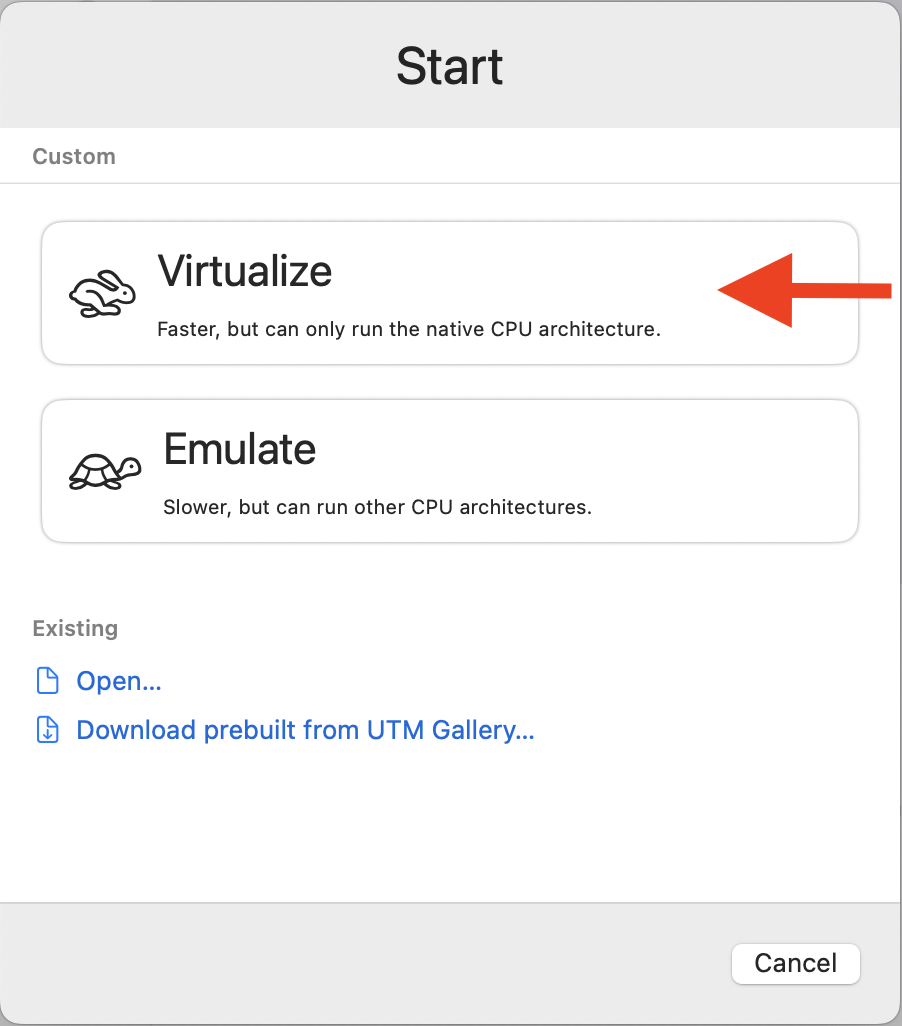
Start UTM on Intel macOS and create a new VM. Select Virtualize.
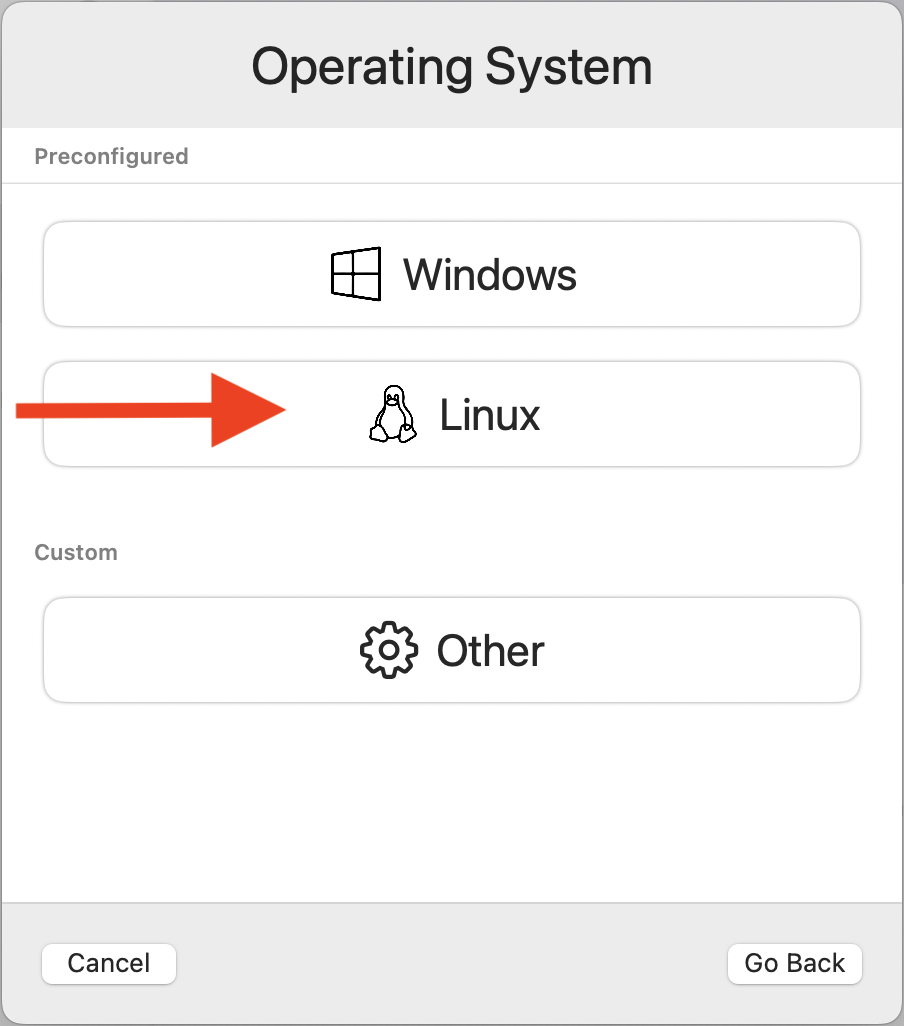
As operating system select Linux.
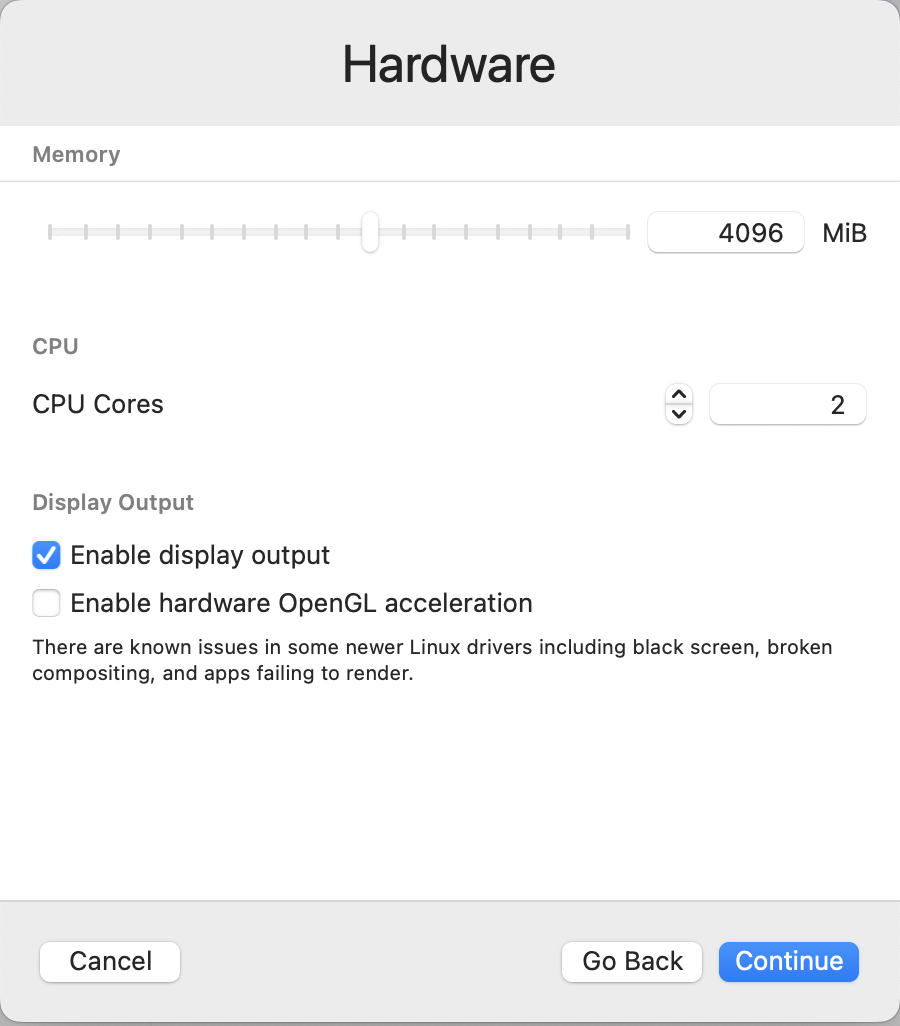
Set the number of cores to 2 or 4.
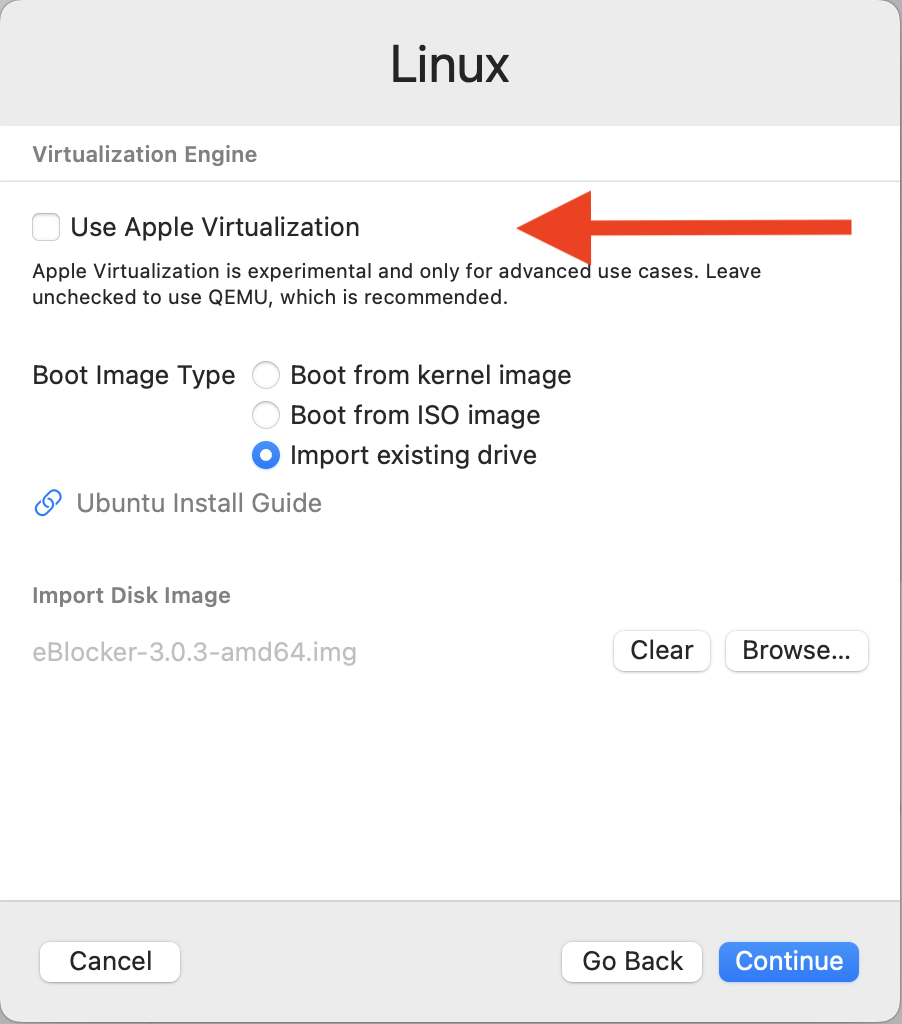
Keep the checkbox Use Apple Virtualization disabled.
Select Import existing drive.
Browse to the downloaded and extracted eBlocker image file.
Do not add a shared directory on the next screen.
On the summary page, rename the VM to eBlocker and save the settings.
Important: do not start the VM yet. Open the settings of the new VM first.
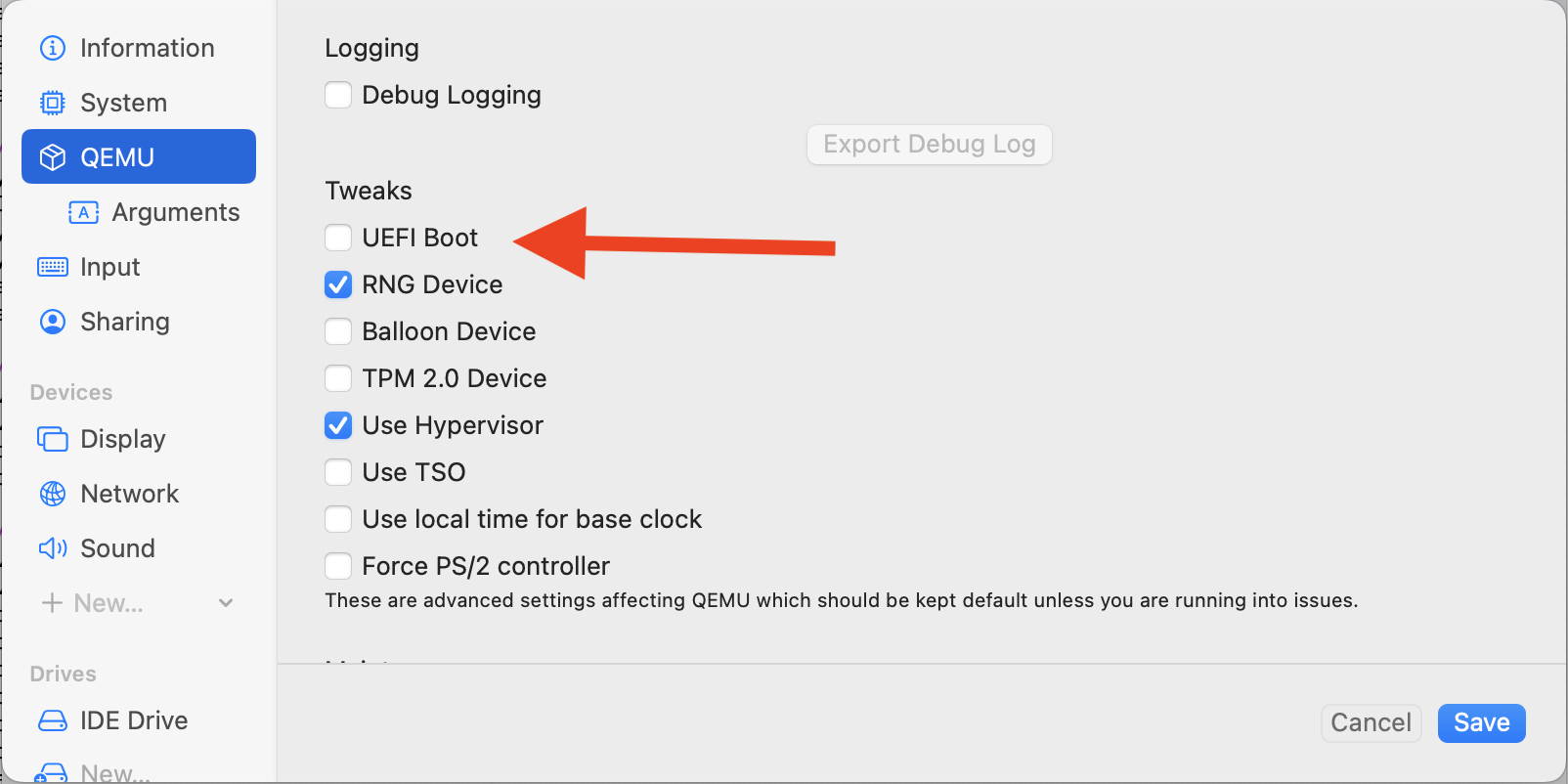
Select QEMU and disable UEFI Boot.
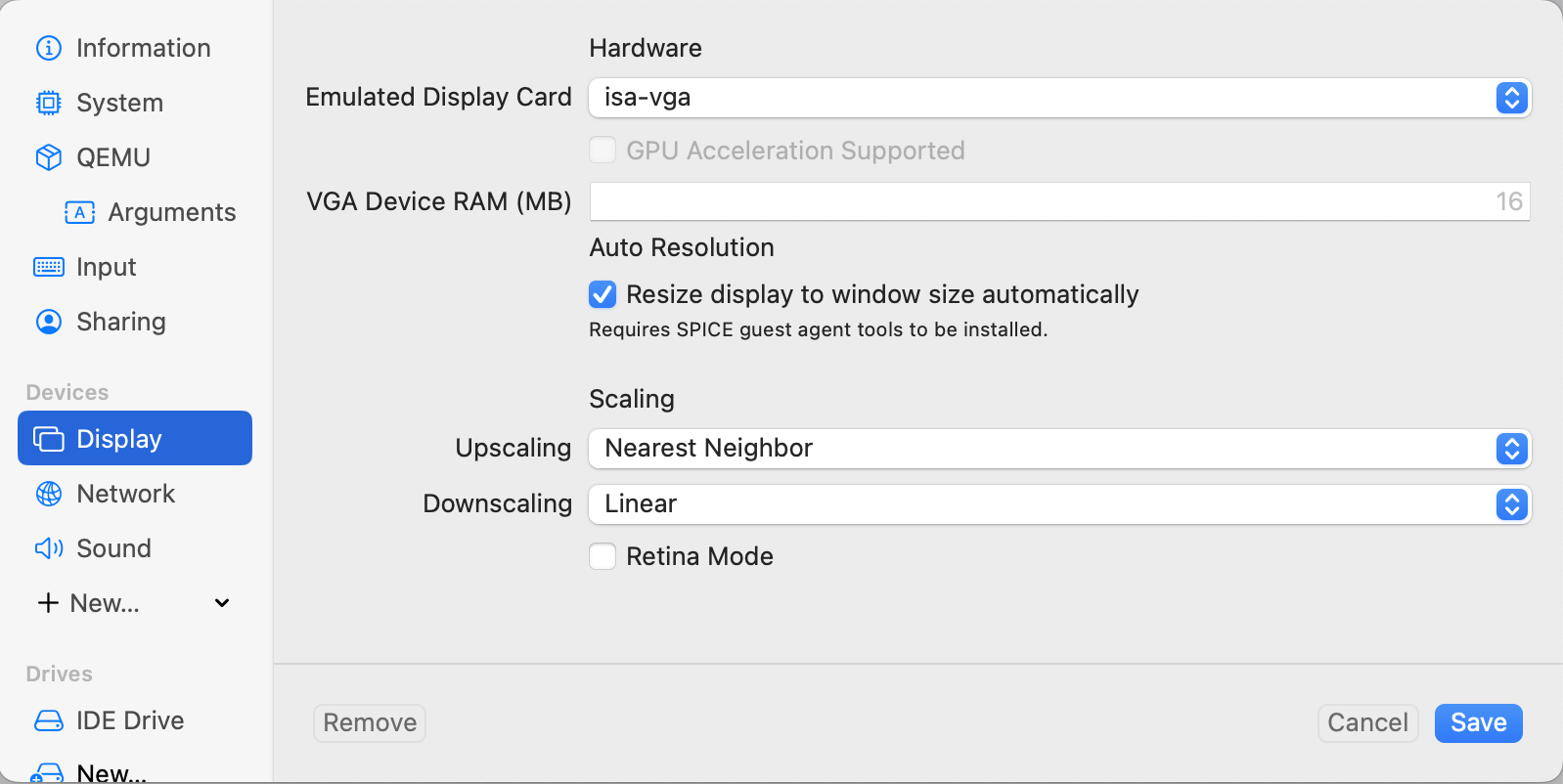
Select Devices/Display and set the emulated display card to isa-vga.
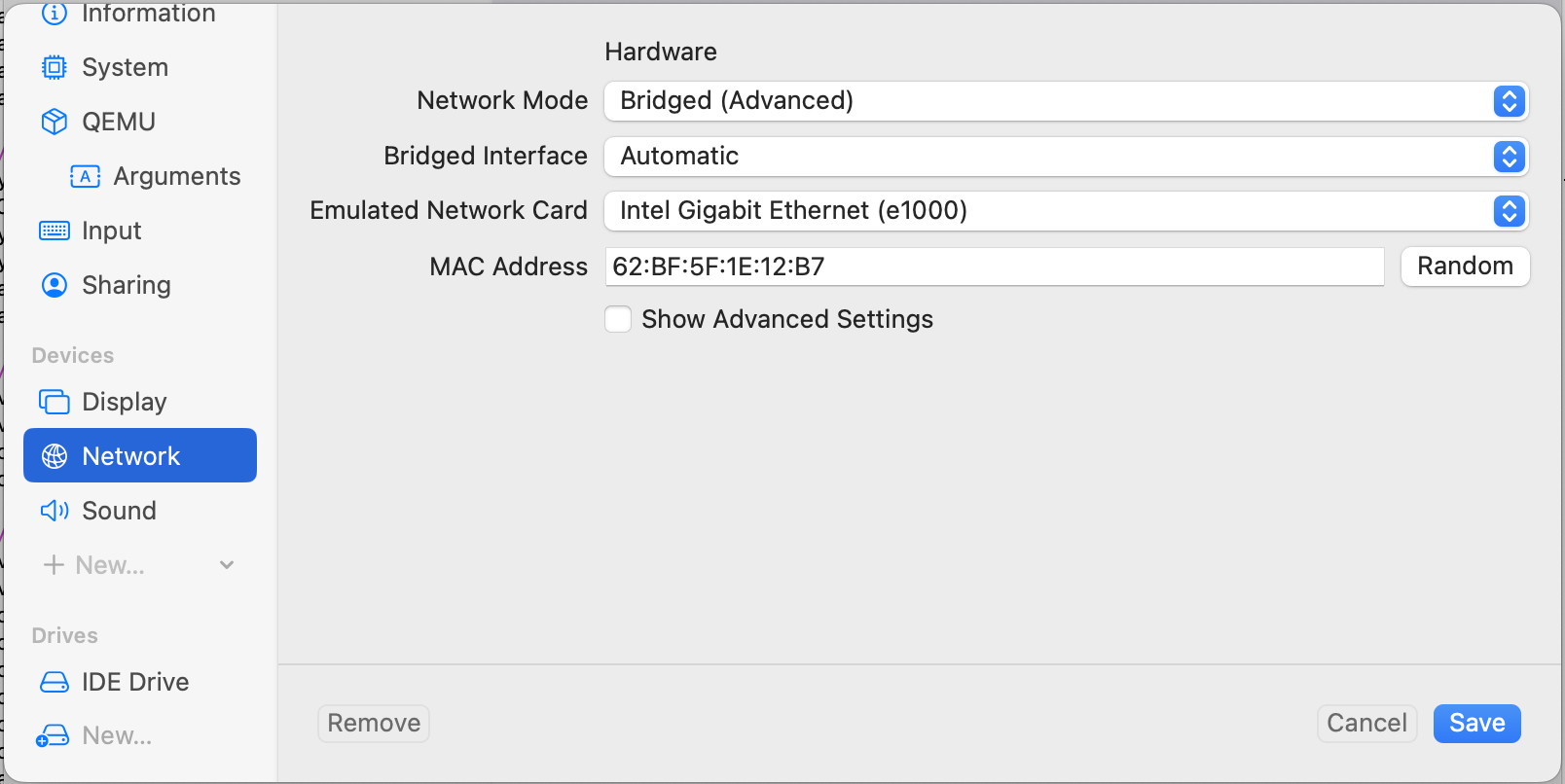
Select Devices/Network and set the network mode to Bridged (Advanced).
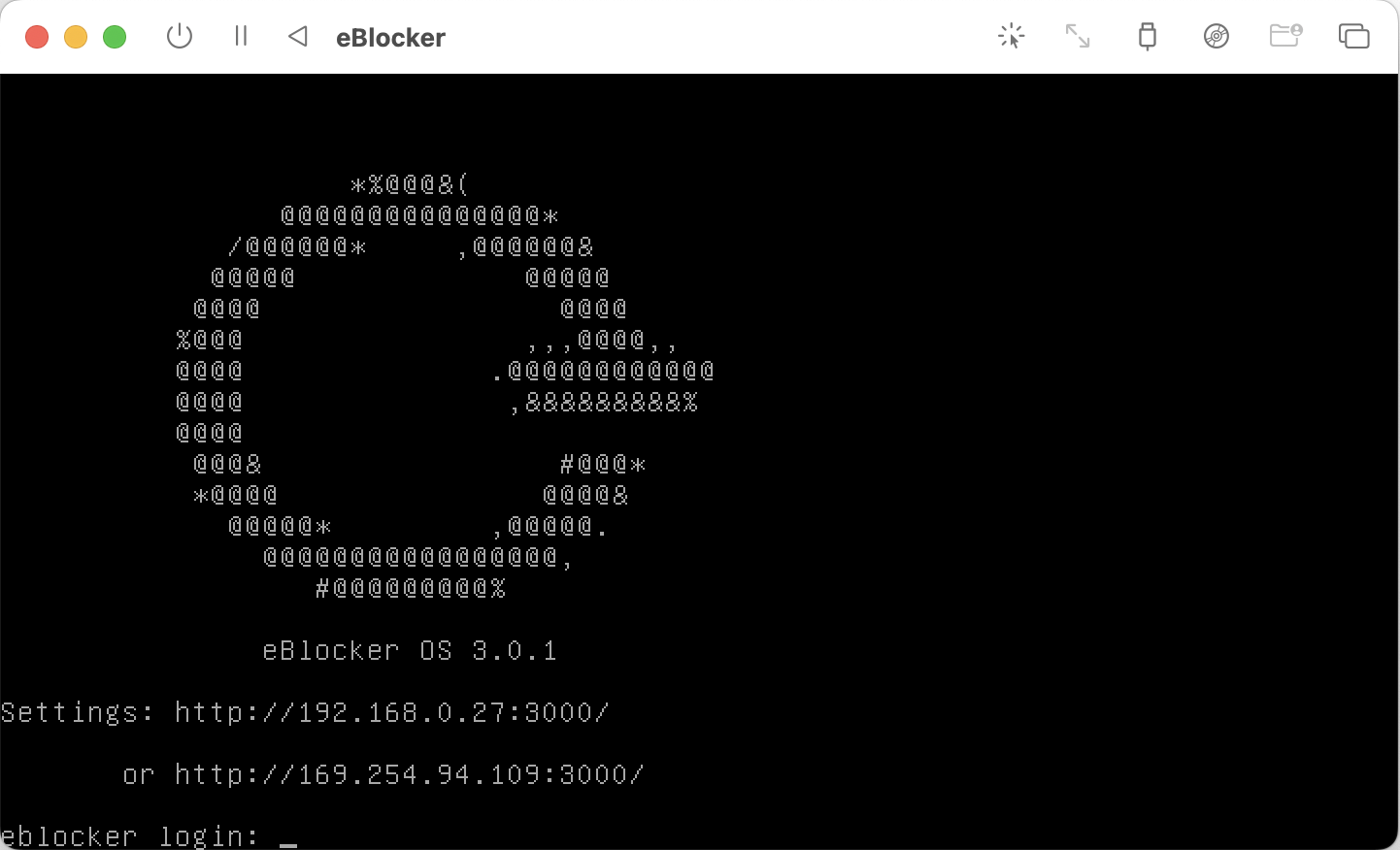
Start the VM and open the settings URL in your browser:
Happy eBlocking!