

eBlockerOS versions affected #
The issue discussed in this article is affecting eBlockerOS <3.2 only. eBlockerOS 3.2 (available May 2025) or higher is working without problems.
Captive WLAN problem #
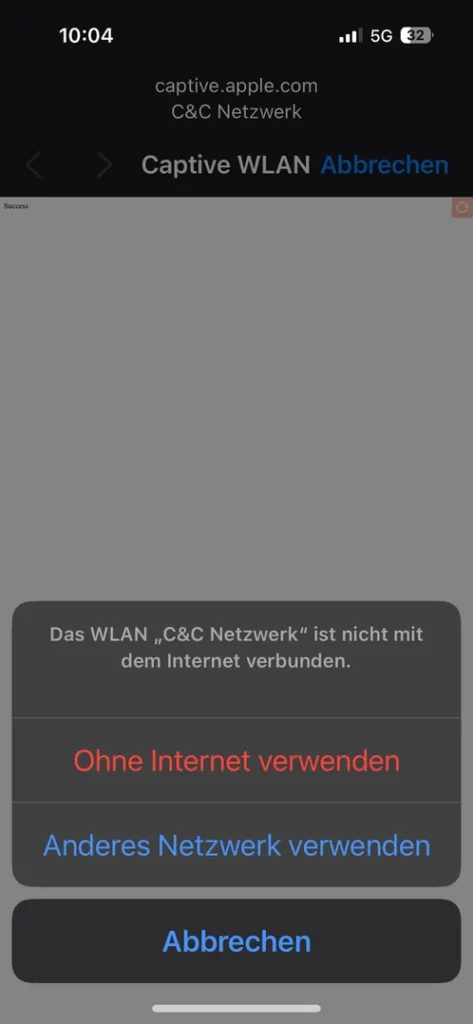
With iOS 18.4 and macOS 15.4 Sequoia (or higher) Apple has introduced a change when connecting to a WLAN. This change can result in a problem if the WLAN and the Apple device is protected by eBlockerOS.
The Apple device will display a dialog similar to the screenshot on the right-hand side.
Depending on your eBlockerOS configuration it may not be possible to dismiss the dialog. You might end up in a loop – not connecting to your WLAN.
To mitigate the issue there is an easy work-around. Alternatively you can update eBlockerOS 3.2 (available May 2025).
Workaround #
There are two alternative ways to configure the workaround that depend on the connection status of the Apple device.
- Your Apple device can not connect due to the Captive WLAN dialog.
- Your Apple device is connected to WLAN and you can access the dashboard
Alternative 1 (Apple device without WLAN connection) #
In case your Apple device can not connect to WLAN, use a different device connected to your WLAN and follow these steps:
- Open a browser and browse to http://eblocker.box/settings/ to open the Settings. You might need to login.
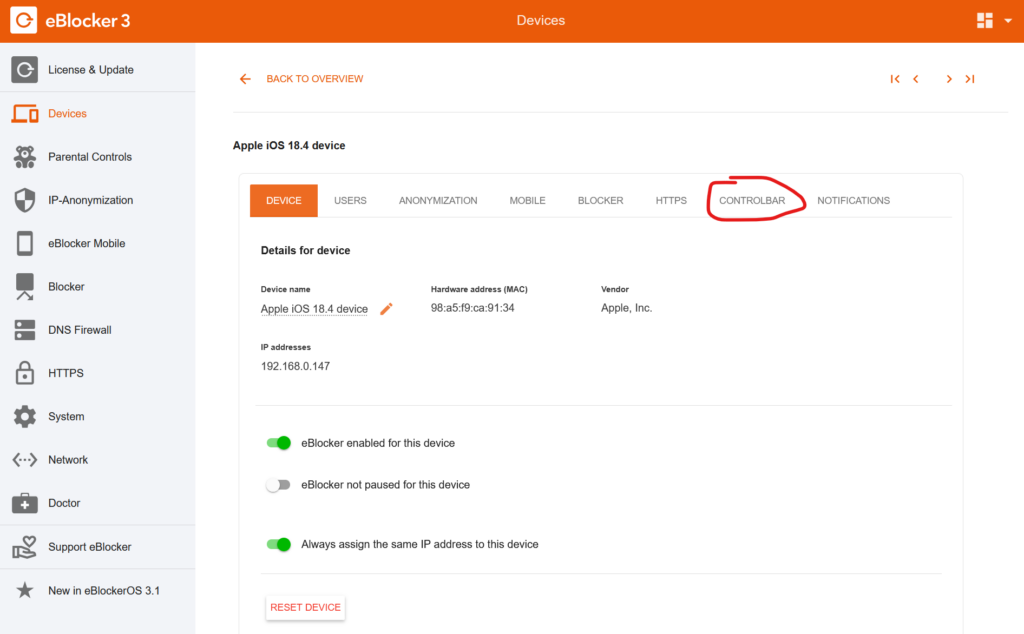
- Go to Settings> Devices and select the Apple device from the device list.
- Select the Tab Controlbar:
- On the Controlbar Tab make sure the option “Only in standard web browsers” is set under “Show eBlocker Icon for Controlbar”.
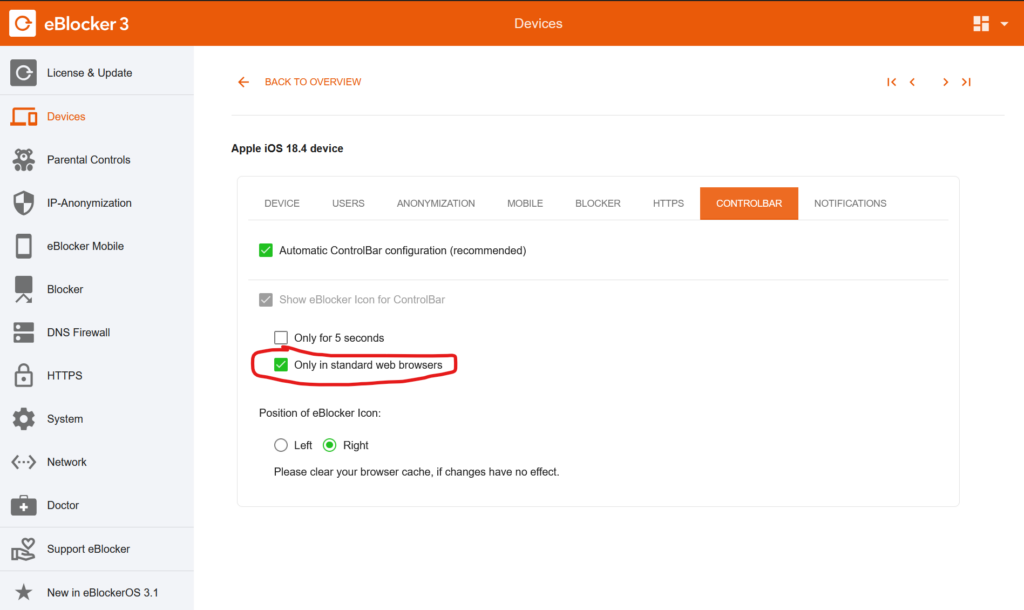
- Done. The Captive WLAN check dialog should no longer pop up.
Alternative 2 (Apple device connected to WLAN) #
If your Apple device is connected via WLAN already, follow these steps on the Apple device:
- Open a Safari and browse to http://eblocker.box/dashboard/ to open the Dashboard.
- In the tile “Control Bar” check “Show only in standard web browsers” as shown in the screenshot:
(In case the tile is hidden, click on the triangle in the upper right corner of the Dashboard and activate the tile.)
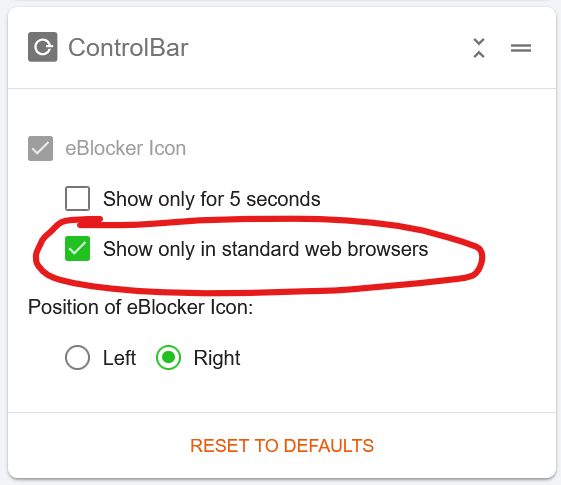
- Done. The Captive WLAN check dialog should no longer pop up.
Update to eBlockerOS 3.2 #
Alternatively you can also update to eBlockerOS 3.2 (available May 2025) or a higher version.